

Open the mobile view
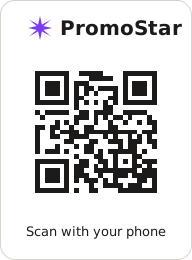
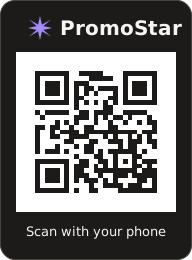
- On your computer, open Platform Connections and find the Mobile App card. The card shows the QR code above and the line Scan with your phone.
- Scan the QR code with your phone’s camera. The mobile view opens in the phone’s browser. To type the address instead, go to
promostar.app/m. - Sign in if PromoStar asks. You land on the mobile view, which lists your posts under Ready now and Up next. With nothing planned, it shows Nothing planned yet.
Install on iPhone (Safari)
Use Safari. Notifications on iPhone need iOS 16.4 or later.- Tap the Page Menu in Safari, then tap Share.
- Scroll the list and tap Add to Home Screen. If you do not see it, scroll to the bottom, tap Edit Actions, and add Add to Home Screen.
- Turn on Open as Web App, then tap Add.
- Open PromoStar from the new Home Screen icon.
Install on Android (Chrome)
- In Chrome, tap More (⋮), then Install and create shortcut.
- Tap Install and follow the steps on screen.
The app needs a connection to load your posts. Without one, it shows Connect to load your posts.